Eams Molded Plastic Chair

History of Eames Molded Plastic Dowel Leg Side Chair

This chair was originally designed in metal as a prototype in MoMA’s 1948 Furniture Design. Charles and Ray Eams changed the material from metal to fiberglass in 1950 and from fiberglass to polypropylene in 1990. The chair is made for comfort by reducing pressure on the backs of thighs. The chair marketed at a shocking four hundred and six eight dollars at Design Within Reach.

ivetteschairMy Experience

When I was first handed the image I did not think that designing this chair would cause so many headaches. I have worked in rhino before, but never for designing anything functional. After several youtube videos and tutorials I was able to attempt the seat. I cannot say that I am fully content with my final product, however I did my best at achieving a similar look to the image I was handed. After countless trial and errors I feel that I have learned a lot about designing in Rhino over the past couple of weeks. I am ready for Project Two.

Project 1

When I first received my chair, I thought it looked deceitfully easy. However, for me it proved to not be so much. It is made out of 1 piece of material, besides the foot pieces at the end of the legs, but the difficult part about it was the curves.Since the chair is very minimal and the only thing that stands out about it is the color and then the curves, when I would get even slightly off from the picture in my eyes it looked very different from the original. I restarted about 3 times because I kept thinking my previous approach was not the best way to make the chair. Honestly, I’m still not happy with the results, but I did my best and learned a lot about Rhino! Oh, and it is a good chair, very comfortable and stable!. It cost around $200 if you’re interested!

AmihanProject1

Profile Chair

Chair 1
Description Reference | http://www.dwr.com/product/profile-chair.do
Chair 2

I was given the Profile Chair to model for Project One!

BEGINNING  |  When I visited the Design Within Reach furniture store to look at my chair in-person, I was surprised how simple its design was!  At first glance, the Profile Chair isn’t very special among the vast variety of chairs the store had in-stock.  Despite its stylish appearance for its own online furniture ad, seeing the chair in-person instead of seeing it virtually changed my approach to modeling.  Once I sat on the Profile Chair, the craftsmanship really shows in its framework!  Thanks to the angles of each wooden piece, the chair literally “profiled” my spine, which sat comfortably in a smooth recline.  Its sturdy base kept my bottom nicely cushioned, which created a feeling of confidence, relaxation and sophistication to boot!  In turn, I fell in love with the framework, color and design!  I was excited to start modeling the Profile Chair!

Design Within Reach - Profile Chair

PROCESS  |  Upon inspecting the Profile Chair, the first thing I noticed was how flush the wooden pieces were in its framework.  I admired how clean and smooth the seams were between each piece that the chair was assembled from.  I also noticed some edges were set by small increments, revealing small linear details in craftsmenship that I had to emulate in my Rhino model.  With that, the most difficult parts of the modeling process included – Sizing/measuring pieces accurately, filleting the chair cushion with a rounded edge, capturing the angles of each pieces, and modeling the underside of the chair.  Otherwise, running through the entire modeling process was enjoyable!  Since this was my first time modeling, the final model is finished but not perfect.  Modeling practice and time-managing were key elements I learned in Project One!

Bertoia Chair

When I saw this chair, I was scared. I didn’t know what I was about to get myself into. And I was right. This chair was extremely difficult to model – I pretty much modeled every line of the seat. Even though this was very time consuming, by the end of it, I became familiar and more experienced with using Rhino. I learned a lot of commands, techniques, and tricks- the most important one being to not pipe lines until the last stage.

bertoia_chair

Harry Bertoia

Knoll historian Brian Lutz once said, “Bertoia’s paintings were better than his sculptures. And his sculptures were better than his furniture. And his furniture was absolutely brilliant.”

Bertoia also collaborated with Eero Saarinen to design the altar for the MIT Chapel. He spent 25 years of his life experimenting with light, sound and volume through sculptures, paintings and architectural installations.

Today Knoll carries on Harry Bertoia’s legacy of innovation, inspiration and beauty with the Bertoia collection, which has been in continuous production around the world since its introduction. In 2005 Knoll introduced the Asymmetric Lounge, a design from Bertoia’s initial experimentation that never reached production.

Navy Side Chair

transparent renderCapture

Supposedly Emeco founder Wilton Dinges tested the strength of this chair by tossing it out a sixth-story window and it survived with only a few scratches! It was built for the US Navy originally and it is made to last 150 years. The chair is much heavier than expected even though it was designed to be lightweight but weight is compensated by the durability.

The chair is much more difficult to build despite its first perception of straight, parallel lines. The legs of the chair vary in size along its length and the seat itself is a thin piece of metal rather than a solid block as expected so it was tough to model. A lot of controls would not operate properly sometimes so extensive trimming and thinking outside of the box was needed.

Lisboa Side Chair

PROJECT 1 FINAL

Project 1 Chair with floor REAL Chair

At first I was pretty excited in designing the chair because I thought the difficulty was not too hard. While I got my hands into the project, I realized it was pretty difficult. Connecting the seat to the legs, bending the back of the seat, creating the rubber bottoms and creating curvature to the seat consumed most of my time. In the end, I am happy with my result after the endless hours in the lab. The left picture is the Rhino file and the picture on the right is the image I took from Design Within Reach. The top also has an image of the chairs stacked, as seen in the store.


Series 7 Chair

Series 7 render

DWG_Series 7

Upon hearing that our first assignment was to model a chair, I freaked. I had experience modeling beforehand but the idea of modeling a chair seemed daunting. Simplicity at its finest is the Series 7 Chair, which was designed by the famous achitect Arne Jacobsen. It is made with a single piece of plywood bent in only 3 ways. Which at first, sounds easy but when you use bend over 200 times in Rhino, just to get the correct curvature, you start to think twice about how precise and articulate designers get to bring life into their creations. I am inspired to design products that love all children, of all species, for all time. The picture above is my attempt to recreate the Series 7 Chair and beside it is a picture of the chair at Design Within Reach. One last note, these are made by hand, just thought you should know that because that’s just awesome. Series 7™


Gas Side Chair

Using recyclable components, Jesús Gasca crafts the lightwieght Polypropylene Gas Side Chair that speaks subtle notes of functionality, comfort and compression. 


Gas-Sidechair-by-Jesus-GascaSoft and fluid curves surround the entire chair, evoking a calm and dynamic feeling that contrasts the more ubiquitous hard edges of contemporary life. If space seems a little too tight, simply stack the Gas Chair, its functionality as both a statement piece and tool come into play as one of the most beautifully  engineered works of Spanish design with Scandinavian and Mediterranean influence. 

GasSideChair-02

12666516_1183495218345084_1957037648_nGasSideChair-01


Piana chair by Sir David Chipperfield

Initially I was flabbergasted by the price of the Piana chair since its ordinariness, in terms of design and materials used, didn’t seem to fit the bill for this item. However, working on copying its design, and later learning more about the person who designed it, I gained more appreciation for this luxury good.

20160119_100645


The Piana chair was designed by the lauded designer/architect Sir David Chipperfield. The main feature of this item is its foldability through a device that turns the three axis’ of the chair —a device which is sleekly hidden within the body of the chair. He describes his design as having a “visual expression that is indicative in its simplicity of the function and role of the item itself.” This statement elegantly encompasses what the design achieves in terms of looks and function, a simplicity that’s evident when stacking a group of these chairs, either folded, or open and combined to form a pyramid —as seen in some of David Chipperfield’s gallery exhibits. The chair is constructed using a combination of Fiberglass-reinforced polypropylene with anti-slip matte finish; polypropylene feet in colors to match chair.

Piana chair-01Piana chair-02

Nicole Gong

My assigned the chair called STUA. At first I was very nervous about this class because I have no experience in modeling. Through the exercises in the training manual, I found myself gradually become able to model complicated items. However, the chair is the most complicated item I have ever modeled.

The biggest challenging for me in the assignment was to create the curved surfaces (seat and the back of the chair). At first I was using control points to bend the surface but later on I found out it was not working because the surfaces were no longer smooth at all. Then I saw a way to solve this problem in training manual, which is to use Patch.  In addition, making the little screws that connect the frame and the back of the chair was also quite challenging, but I am glad that I found a way out.


NicoleChairFi-page-001NicoleChairFi-page-002


Saarinen Tulip™ Armless Chair

My assigned chair was the beautiful Saarinen Tulip Armless Chair.

The name reference the shape of the molded fiberglass though I’m also reminded of the mod styles of fiberglass egg chairs from the 50’s on. This chair prolific enough to be mentioned on Wikipedia under the mid-century modern article.

tulip_tables,0

Design Within Reach’s description of this piece states: Eero Saarinen called himself a “form giver,” and everything he designed – from the Gateway Arch in St. Louis to his Womb™ Chair to his Pedestal Table – had a strong sculptural quality. “The underside of typical tables and chairs makes a confusing, unrestful world,” said Saarinen. In a 1956 cover story in Timemagazine, he announced that he was designing a collection to “clear up the slum of legs in the U.S. home.” Later that year, he completed his Pedestal Table and Tulip Chair Collection (1956) with its cast aluminum base inspired by a drop of high-viscosity liquid. The seat swivels for easy entrance to or exit from a table. Each chair is stamped with the KnollStudio logo and Eero Saarinen’s signature. This is the authentic Tulip Collection produced by Knoll. Made in Italy.

chair_render

Victoria Ghost Chair

When I went to Design Within Reach to take a look at this chair, I was surprised at how lightweight the chair was. After finding out that it’s made from a single piece of injection-molded polycarbonate, it’s weight is no surprise. This chair is transparent but not to the extent that it is barely visible.

First page

It is a baroque-style chair, related to the Louis Ghost Chair. The designer of the Victoria Ghost Chair says he designed this chair to be “well balanced.” It is intended for indoor and outdoor usage in commercial or residential settings.

Victoria Ghost chair render

Victoria Ghost chair render

La Clasica

Chairs are uniquely singular in their use. The chair is used to sit on. That’s it.

And yet after having spent many many hours designing, refining, and completing the modeling of this chair I most certainly have the utmost respect for designers of chairs, and chairs themselves. Whenever I design or model something I always focus on how it is going to be used? How is this going to work in the space its intended for?

Here is the chair in its actual form vs the model I created:

LaClasicaLines4 [Converted]-02

Created Using Rhino 5

DSC_0003

Taken at the DWR storefront in Costa Mesa

The designer of this chair La Clasica is the founder and principal design of Stua (solo tengo un amor). The furniture design company is based in San Sebastian, Spain (a place I treasured before I knew there were good chair designers there). His name is Jesus Gasca, born in 1939, he trained as an engineer before transitioning into design.The main aspect of my engineering training I have implemented into this project is the drawings themselves:

LaClasicaLines4 [Converted]-01

Scaled drawings generated using Rhino an completed using Adobe Illustrator

Below is a video of Jesus discussing his design techniques and why he loves what he does:

Thanks so much for reading.

Cheers!


Project One – Chair Rendering

GEORGE NAKASHIMASTRAIGHT-BACKED CHAIR

For this project, I modeled the Nakashima straight- backed small, wooden dining chair using Rhinoceros 3D. The photo was taken at Design Within Reach in Costa Mesa, California. Below are my renderings.  IMG_0467
chair_render1 chair_render2
chair_sketch3 The Nakashima Straight-Backed Chair (1946) was designed by George Nakashima, a designer who believed in functionality of designed objects. He designed the chair for Knoll and maintained structural lines throughout to create a simple and traditional appearance. The material is solid walnut.
chair_sketch1 chair_sketch2

Additional Project One Samples

Below are some additional sample Project One submissions, just to give you an idea of how your pages and post can look in the end. None of these samples are perfect, but they’re all quite good.

Nice attempt to design the page. Excellent use of line, though the hidden line is too prominent. Would have been nice to split the PDF pages into parts for the blog post.

Another lovely layout. I also appreciate the additional information provided about the chair in the post. This is a better example of using the pages to make the blog post (sandwiching the text).

Simple, elegant drawings. It’s a nice bonus to see the modeling process described, though this wasn’t asked for.

Nice detail, though the lines are too dense. It’s important to not overwhelm the page with every last detail, particularly online. These looked much better as printed pages (not required in your case).

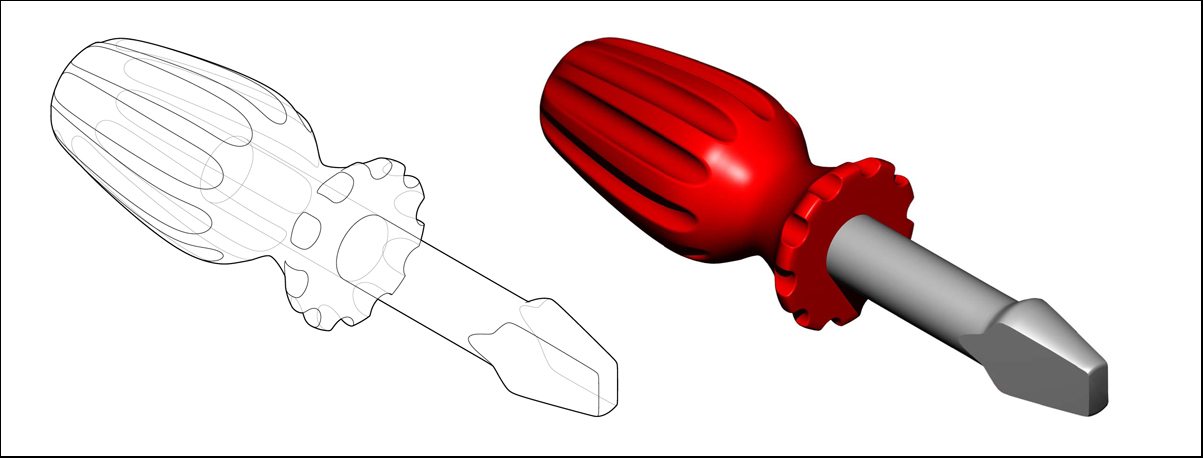
Another screwdriver. Nice distribution of objects on the page. Probably follows my example too closely. Poorly executed as a blog post. Keep in mind that your page is horizontal, and the blog is vertical, so it’s almost always awkward to just drop the PDF into the post. (Greg Phillips has since gone on to do some really cool stuff.)

Not the most interesting post, and the lines are too dense in places, but wow was this ever an impressive model — one of the finest I’ve ever seen. No. Naked. Edges. This is why we learn Rhino — if you can get this good, you can model anything.

Project One Evaluation

Project One is evaluated as follows.

First, I take a look at the Rhino 3-D model. I look for adequate and accurate detail of all external and (where possible) internal parts, arranged in a well-organized system of layers. Since the model must be watertight, i.e. it must be constructed entirely of valid closed polysurfaces, I perform the following set of analyses:

  • Turn off all 2D layers (all 2D geometry should disappear)
  • SelBadObjects (nothing should be selected)
  • SelClosedSurfaces, SelClosedPolysurfaces, Hide (all 3-D geometry should disappear, and nothing should remain)

Next, I take a look at the STL file. If the 3DM was watertight, then I don’t expect any problems, but I perform the following analysis regardless:

  • Set to Rendered View
  • SelOpenMesh (nothing should be selected)

I also check to make sure the tessellation is suitable for 3D printing. Note that Rhino’s default Export > STL settings are generally suitably accurate.

The drawings and renderings are to be prepared on two 11″ x 17″ pages, and uploaded as a single PDF. In the drawings, I’m looking for:

  • Appropriate lineweights applied to appropriate lines (Make2D is limited: you should be filling in gaps as necessary)
  • Correct layer order, such that the heaviest lineweight lies on top
  • Appropriately assigned and composed dimensions
  • An appropriate selection of orthographic views, and an appropriately selected perspective or parallel view

In the rendering, I’m looking for:

  • No blown-out highlights or underexposed shadows: basically, no pure black or pure white
  • Reasonable colour selections for different parts of the object (materials are encouraged but not required)
  • Object-appropriate lighting (generally from above)

Good luck on Project One!

Project One Sample

Below is a sample blog post for Project One. Note that this object is considerably simpler than the ones you’re modeling.

PROJECT ONE: JESSE COLIN JACKSON

FLAT HEAD SCREWDRIVER


ORTHOGRAPHIC LINE DRAWINGS

ISOMETRIC LINE DRAWING AND RENDERING

I have also uploaded to EEE a sample of the files you are required to submit, as well as any files you’ll need to make along the way, including:

  • The line drawings and renderings of my small object. Note that these have been compiled into a single two-page PDF file: yours should be as well.
  • The 3DM model of my small object.
  • The STL model of my small object.
  • The Illustrator document used to generate the drawings and renderings (for reference only — don’t submit any Illustrator files).
  • The PNG image file from Rhino used in the Illustrator document (for reference only — don’t submit any image files).

Project One Tips and Tricks

ON CREATING AN ACCURATE FREE-FORM 3-D NURBS MODEL. . .

A good Rhino 3-D model:

  • Includes all necessary details up to but not including surface texture
  • Makes use of labelled layers to distinguish between different components
  • Is constructed entirely of valid closed polysurfaces that correspond to the different components
  • Contains only coplanar components, not overlapping components
  • Contains no naked edges (Analyze > Edge Tools > Show Edges)
  • Contains no invalid or bad objects (Analyze > Diagnostics > Check)

Typically, you will model all components of your object several times before you get it right. Strive for a minimum number of surfaces, and employ additive methods over subtractive methods wherever possible. Take breaks, drink water, and get enough sleep.

ON CREATING A DIMENSIONED ORTHOGRAPHIC LINE DRAWING. . .

Click here to download selected excerpts from Francis Ching’s Design Drawing, which reviews technical drawing conventions.

You are not draftspeople; you are not expected to generate technically perfect dimensioned drawings. Still, you need to be able to communicate your designs to the technical experts who will help you fabricate them. A reasonable set of dimensioned orthographic drawings:

  • Includes only those views that are necessary (typically Top, Front and Right)
  • Is dimensioned to an appropriate level of accuracy
  • Does not include any duplicate dimensions
  • Does not include any dimensions that overlap on the same side

To generate the basis for a set of 2-D drawings, use the Make2D command, selecting 4 View (USA), Show hidden lines and Maintain source layers. Note that the fourth view is whatever arbitrary position your Perspective viewport is set to. You could also create an isometric view instead (see below).

(OPTIONAL) ON CREATING AN ISOMETRIC LINE DRAWING. . .

Note that you are not obliged to create an isometric line drawing. You may choose to create a perspective line drawing or any other projection that clearly depicts your small object.

The isometric view, however, is the least visually distorted of the axonometric projections, and is commonly employed in the representation of small objects. The isometric angle of view is approximately 35 degrees above the ground plane.

In order to create an Isometric viewport (to use in place of the Perspective viewport when generating 2-D information):

  • Create the geometry required to align the camera and target with the correct angle of view (see — or better yet, steal from — the sample Project One).
  • Right-click on the Perspective viewport window and select Viewport Properties; select Parallel Projection, and Place the camera and target
  • Right-click on the Perspective viewport window again and select Set Views, Named Views and save the view as Isometric
  • Be careful to reset your Isometric viewport before outputting your rendering or 2-D information via the Make2D command.

ON ENHANCING A LINE DRAWING USING ILLUSTRATOR. . .

Adjusting the appearance of your 2-D information in Rhino is awkward at best. A better choice is to export your 2-D information as an AI file (File > Export Selected > Adobe Illustrator). Advanced Illustrator techniques are beyond the scope of this course — but you’ll need to know the following to get through Project One:

  • When exporting your 2-D information, select “Snapshot of current view,” unless you need to make scaled drawings (for Project One, you don’t).
  • When you first open your exported 2-D information, you’ll need to set up your Artboards (Document Setup > Edit Artboards). Make two 11″ x 17″ sheets, landscape format.
  • You’ll need to scale your 2-D information using the Selection Tool. Hold down Shift to constrain the proportions of your lines.
  • Next, you’ll need to adjust the line weights and colours. Note that the Illustrator maintains whatever layers you set up in Rhino. To select all of the objects in a layer, click beside the circle in the Layers pane, and a box will appear. Change the layer’s Stroke and Colour as appropriate. Check the sample Project One for suggested line weights and colours. Note that the layer order determines which lines are on top. If you cut-and-paste in Illustrator, make sure “Paste Remembers Layers” is selected, otherwise you’ll lose the layers you created in Rhino.
  • Chances are your dimension text doesn’t look right. Select one and then all of your text elements (Select > Same > Appearance), and adjust themas you see fit.
  • Don’t forget to insert your rendering (File > Place). Embed the image into your Illustrator file.
  • Print to PDF to generate the file required for both your printing and linking. Export to JPEG to generate the files required for viewing on the blog.

ON CREATING A RENDERING USING RHINO RENDER. . .

Just as in a photography studio, a good rule of thumb is to use the minimum number of lights that ensures that all visible surfaces render neither pure white nor pure black. A typical initial setup includes two spotlights 90 to 120 degrees apart pointed 45 to 60 degrees down towards the object (see — or better yet, steal from — the sample Project One). Adjust the intensity of these lights via Properties. Under Render Properties, make sure you have an appropriate Resolution setting, and consider using a Transparent background in order to facilitate a clean layout (File > Save As > PNG).

ON ENHANCING THE RENDERING USING PHOTOSHOP. . .

Photoshop is an essential tool for most high-impact renderings. At the very least, use Photoshop to make adjustments to the tonality, saturation and contrast of your rendering. Photoshop is also where you’ll typically add context, people and sometimes texture. Advanced Photoshop techniques are beyond the scope of this course.

ON OUTPUTTING A FILE FOR 3-D PRINTING. . .

The correct filetype for most 3-D printing applications is the STL file (File > Export Selected > Stereolithography). The default STL settings are appropriate for most small objects. If your file is unwieldy, try increasing the tolerance setting to generate less polygons; if you require a great deal of precision, try decreasing the tolerance setting to generate more polygons. 

In order to successfully print, your STL must be watertight, which typically requires a watertight 3DM constructed entirely of valid closed surfaces or polysurfaces. Open your exported STL, and double check that your mesh is contains no naked edges (Analyze > Edge Tools > Show Edges). Repair any naked edges as necessary (FillMeshHoles).