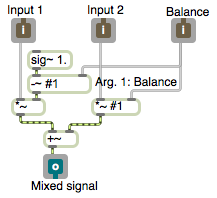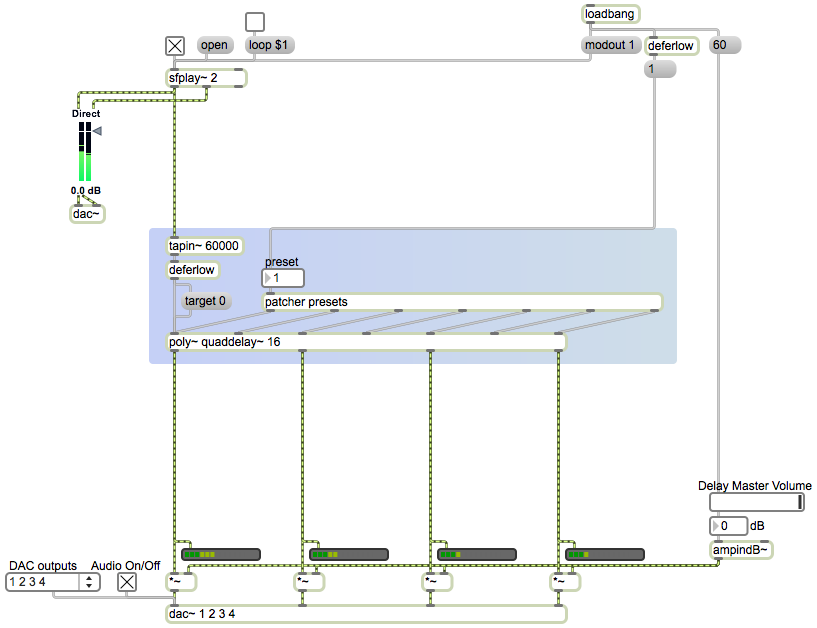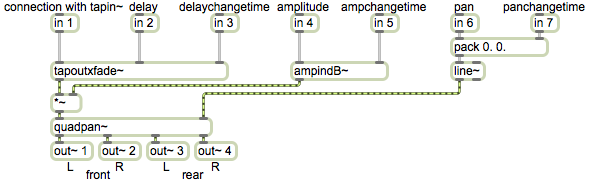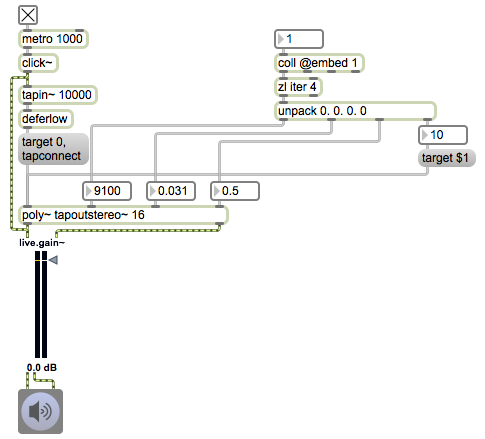
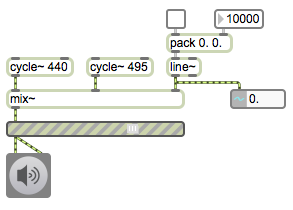
This example uses the subpatch from the previous example, so it requires that you download the file mix~.maxpat and save the file, with that same name, somewhere in the Max file search path.
This example demonstrates the use of the line~ object to make a linear control signal, which is used to control the balance between two audio signals. (A “control signal” is a signal that’s not intended to be heard directly, but which will affect some aspect of another signal, or perhaps will control some global parameter of several sounds.) The line~object receives a destination value and a ramp time, and it then interpolates, sample-by-sample, from whatever its current value is, to ramp to the specified destination value in exactly the desired amount of time.
The mix~ object expects a control signal from 0 to 1 in its right inlet to specify the desired balance between the two audio signals in its left and middle inlets. When the control signal is 0, we hear only the first input sound; when the control signal is 1, we hear only the second input sound. Inside mix~, the two sounds are scaled appropriately according to the balance value in the right inlet, added together, and sent out the outlet. So to do a smooth linear crossfade between sound 1 and sound 2, it makes sense to send a linear control signal from 0 to 1 into the right inlet.
The two cycle~ objects provide constant full-amplitude tones (the pitches A and B), so they’re good sound sources to allow us to hear the effect of the crossfade clearly. The toggle is used to initiate a crossfade from one sound to the other; it provides a 1 or a 0 as the destination value for the balance. First we need to supply a ramp time, in milliseconds, in the right inlet of the pack object. When the destination value comes from the toggle, it gets packed together with the ramp time as a two-item list, and passed to the left inlet of line~. Over the course of that specified time, line~ calculates the intermediate value for each sample that’s needed in order to describe a straight linear progression toward the destination value.
The line~ object is thus a control signal generator, and importantly, it’s an object that provides an interface between the Max scheduler (the normal world of Max in which individual messages occur at a specific instant in time) and the MSP signal chain (in which a continuous stream of audio samples are being calculated). A single message to line~ triggers a change in its output signal, a change which could take place over any desired amount of time. You can also think of line~ as a “smoother”, allowing a signal parameter (such as amplitude, frequency, etc.) to change smoothly from one value to another.