Category: Professional

  • Making Avatars with Apple’s Image Playground

    Making Avatars with Apple’s Image Playground

    Apple introduced a new app in iOS 18.2 called Image Playground. It is an Apple Intelligence feature that uses artificial intelligence to create image based on photos, text descriptions and themes. As of December 2024, the following Apple devices can use Apple Intelligence when upgraded to iOS 18.2 or higher.

    Supported Devices

    • iPhone: All iPhone 16 models, iPhone 15 Pro and iPhone 15 Pro Max.
    • iPad: iPad Models with M1 or later and iPad Mini (A17 Pro). Requires iOS 18.2 or later
    • Mac: Mac Models with M1 or later. Requires macOS 15.2 or later

    How to create an avatar using Image Playground

    1. Launch the Image Playground app. (It may just be called Playground on the iPhone.)
    2. Click the “+” button to begin creating a new image.
    3. Select a person. Tap the person icon (resembling a silhouette) located near the bottom of the screen. Choose a person from your photo library.
      Apple's Image Playground app. Select a person or photo
    4. Alternately, you can select an image. This often works better because the images Playground chooses are not always the most recent or best ones in my opinion.
      • Click the “+” button next to the person icon to select a photo.
      • Tap Choose photo
      • Tap All to see your entire library. It defaults to Featured.
      • Find a photo you want to use and select it
    5. Playground will start generating images.
    6. You can refine this by either using the suggestions below the image or typing in other descriptions in the “Describe an image” field.
      The Suggestions include things like themes, costumes and accessories. You can add multiple suggestions or write multiple descriptions. Playground will continue to refine and create new images. For example, I added a suggested “Scarf” and added “2 long braids” to match my favorite hairstyle.
      Refine the image
    7. Swipe through the generated images until you find one you like. It will continue generating up to 10 images.
    8. Tap the three dots (…) to see options like Copy, Share, Save Image and Report a Concern. I like this image, so I have chosen to Save it.
      Save Image
    9. The Saved Image will now be in your saved Playground Images, but not your Photo library.
      To save it to your Photo library, tap on the image and click the upload icon (square with an up arrow) at the bottom of the screen. Tap Save Image. It will now be available in your Photo library.
      Save image to photo library

    Caveats

    The first times I tried this, I could not get an avatar that looked like me. I ended up taking several selfies and using those. The only ones that looked like me were without my glasses, but I always wear my glasses. I had great luck with photos of some friends. They may have more distinctive features. If you don’t like what you get the first few times, keep trying. Try taking more photos until you start getting something that looks more like you.

    Screenshot of several avatars
  • Making Avatars with Microsoft Copilot AI

    Making Avatars with Microsoft Copilot AI

    I enjoy making cartoon avatars. In the past, I used Apple’s Memoji app to make a custom avatar of myself. I explained how to do this in a previous post. Today, I’m going to explain how to use Artificial Intelligence (AI) using DALL-E 3 through Microsoft’s CoPilot to make an avatar.

    What is DALL-E?

    DALL-E is a neural network-based artificial intelligence developed by OpenAI. It is designed specifically for generating images from textual descriptions, essentially functioning as a text-to-image generator. The name “DALL-E” is a play on the name “Dalí,” referring to the surrealist artist Salvador Dalí, and the Pixar character Wall-E. (Full disclosure, this paragraph was written by ChatGPT when asked for a description of DALL-E.)

    How can I use DALL-E? Is it free?

    Currently there are at least two ways to use DALL-E.

    1. ChatGPT Plus: You can use DALL-E if you pay for a ChatGPT Plus account, which is currently $20/month. Their free accounts do not include GPT-4 or DALL-E.
    2. Microsoft Copilot Chat: However, if you are a UCI faculty and staff member with Microsoft 365 account, you can use GPT-4 and DALL-E through Microsoft Copilot Chat without having to pay for a ChatGPT Plus account. Learn more on the OIT website.
      • Copilot can only create square images at 1024 x 1024 pixels. You can’t choose the aspect ratio like you can with DALL-E through ChatGPT.
      • You can only have 30 responses per conversation.
      • Copilot does not save your chats. Make sure to save any images you create.

    How to create an avatar using Microsoft Copilot with DALL-E

    1. Sign in to Microsoft Copilot with your UCI Microsoft 465 credentials. (This is currently only available to UCI faculty and staff. It is not currently available to UCI students. However, if you have a personal Microsoft 365 account, you may be able to use Copilot through that account.)
    2. In the Ask me anything… field, type in a description of the avatar you want to make. I used the following prompt: “Create a Pixar style avatar of a Latina woman in her mid 50’s. She’s got shoulder length hair with some silver. She wears cat eye glasses and has brown eyes. She’s happy.”
    3. The chat bot will try to create it and give you a few examples. This is what I got the first time.
      example of avatars created with DALL-E
    4. It wasn’t exactly what I wanted, so I continued to refine the image by having a conversation with the bot. DALL-E is one of the easiest AI image generators to use because you can have a conversation with the chatbot and have it help you refine what is needed. I asked it to make the hair brown with a few silver stripes and change the bangs.
    5. The next version was closer to what I wanted.
      example of avatars created with DALL-E
    6. If you have any hobbies or things you like, feel free to include them in your chat description. The more you add, the closer you can get to what you want. I love cats, so I asked for one that included a striped tabby cat.
      example of avatars created with DALL-E
    7. Once you create one you like, click on it to open a larger version. Right-click on the image and save it to your computer. You will also get the exact prompt that Copilot helped you create and the content credentials showing it was generated with AI and the date.
      Screenshot showing AI generated image and the prompt text.
    8. Make sure to download all of the images you want to save. Microsoft Copilot through UCI doesn’t save your chats. (If you’re using a personal account, it should save your chats.) Not saving chats is a great security feature as no one, not UCI or even Microsoft can see your chats. As soon as you close your browser or start a new chat, all of the information from this chat will be gone forever.
    9. Use your new AI generated avatar any where you want including Zoom, Microsoft, etc.

    Does ZotGPT include image creation?

    No, UCI’s ZotGPT does not include image creation yet! However, it is on the roadmap and should be available in a future version.

    More AI Tips to Come

    I hope you found this useful. I’ll continue to create content on ways I’ve been using AI and the ways it has helped me do things more quickly

  • Improve Performance and User Experience

    Improve Performance and User Experience

    On Thursday, October 27th, I had the privilege of speaking as part of the Women in Tech Inclusive Networking series. It was a hybrid event. Some folks were on campus, and others attended via Zoom.

    My presentation was on the process we used for the OIT website redesign. I talked about how we created and leveraged customer-centric goals and enlisted an advisory committee of stakeholders to transform our website. Every critical decision, from navigation to naming conventions, was guided by our advisory committee and arrived at by focusing exclusively on their needs. This unique design process helped us to deliver a modern, appealing, and most importantly, super-functional site.

    Session Video

    Slides

    These are the slides from the session.

  • Easy collages using iOS 16 to lift subjects from photos

    Easy collages using iOS 16 to lift subjects from photos

    iOS 16 brought a fun, new feature to photos. You can now isolate, lift, or cut out a person, pet, or object from the background of a photo. This used to be an arduous task in Photoshop, but now it’s as easy as a long press on a photo taken with an iPhone and stored in your Photos library.

    How to cut out a photo in iOS 16

    1. Choose a photo from your Photos library. It can be a photo taken before you upgraded to iOS 16.
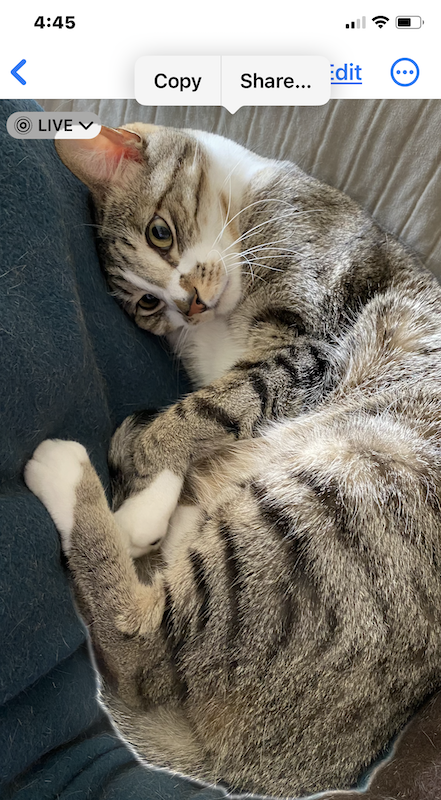
    2. Long press on the subject of the photo. You will feel a haptic tap and a white halo will appear around your subject. If it doesn’t work, try again or try another photo.
    3. You should then see Copy and Share buttons.
      cat photo edit
    4. If you choose “Copy” you can paste it into another app that allows you to paste a PNG file.
    5. If you choose “Share:, you get more options including Copy. From here you can AirDrop it, or send it via Messages, Mail, or other apps. You can also Save the Image (to Photos), Assign it a Contact, and more!

    Learn more about this feature from Apple.

    Add your Subject to Fun Backgrounds

    Now that you have a subject freed from its background, have fun. Find a background image to place it into to make a fun collage.

    The following images were created in about 5 minutes using Adobe Photoshop or Affinity Photo. If you have Photoshop, that will work well. If you don’t, Affinity Photo is a good and far less expensive alternative.

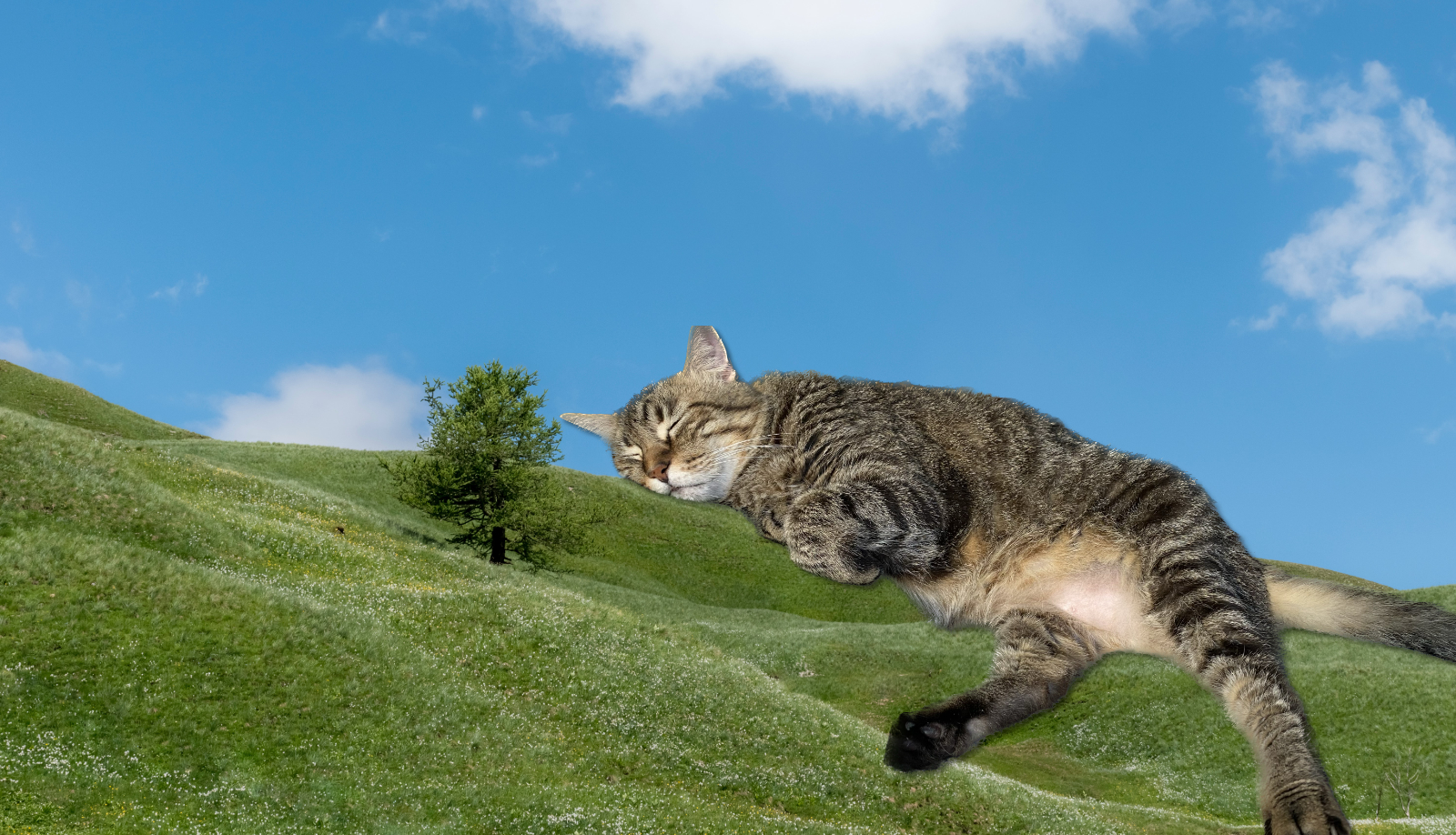
    cat sleeping on a hillside
    Tabby cat sleeping on a hillside
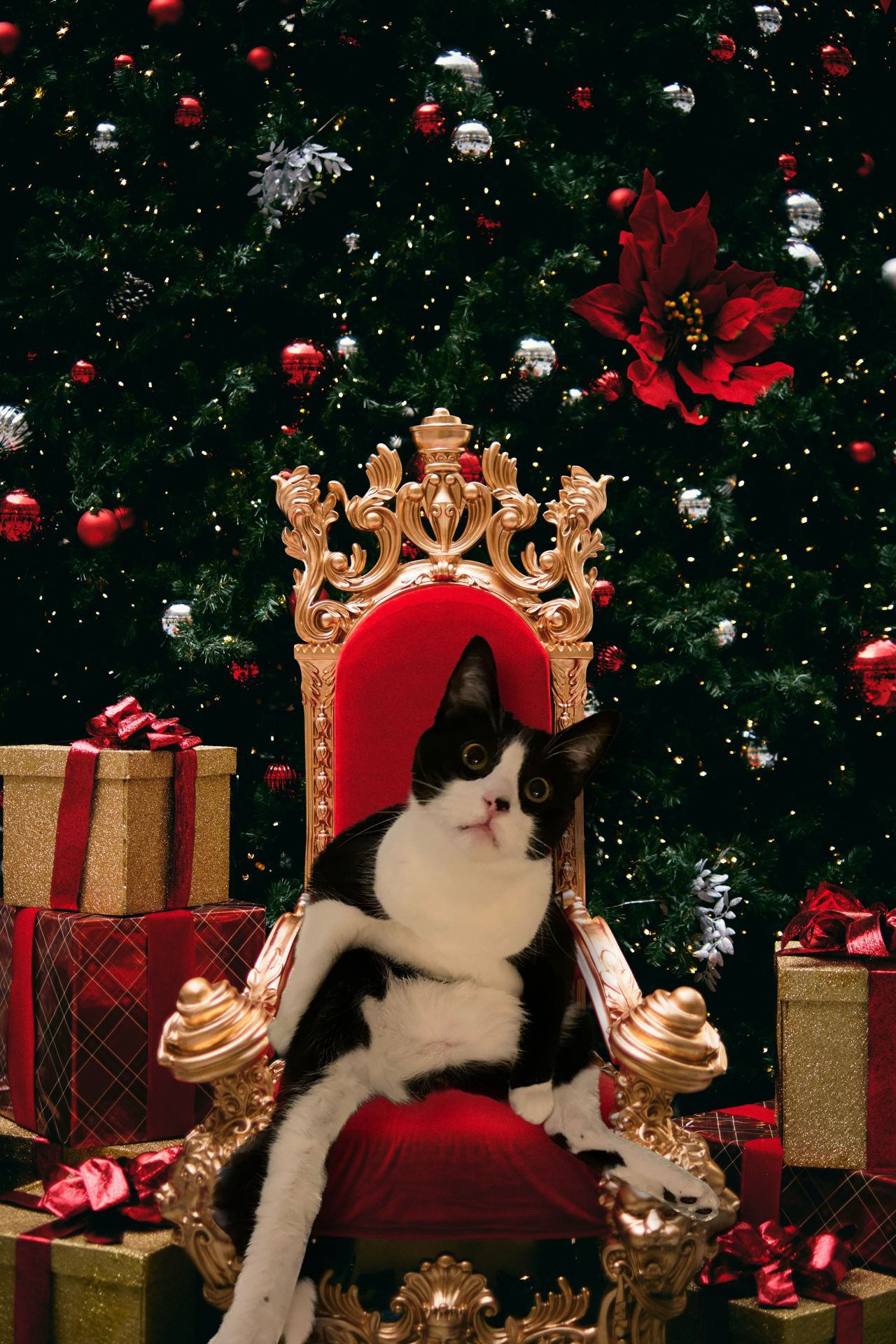
    tuxedo cat sitting on a holiday throne
    Bob wants to know if you’ve been naughty or nice!
  • A New Department Website: UC Tech Presentation

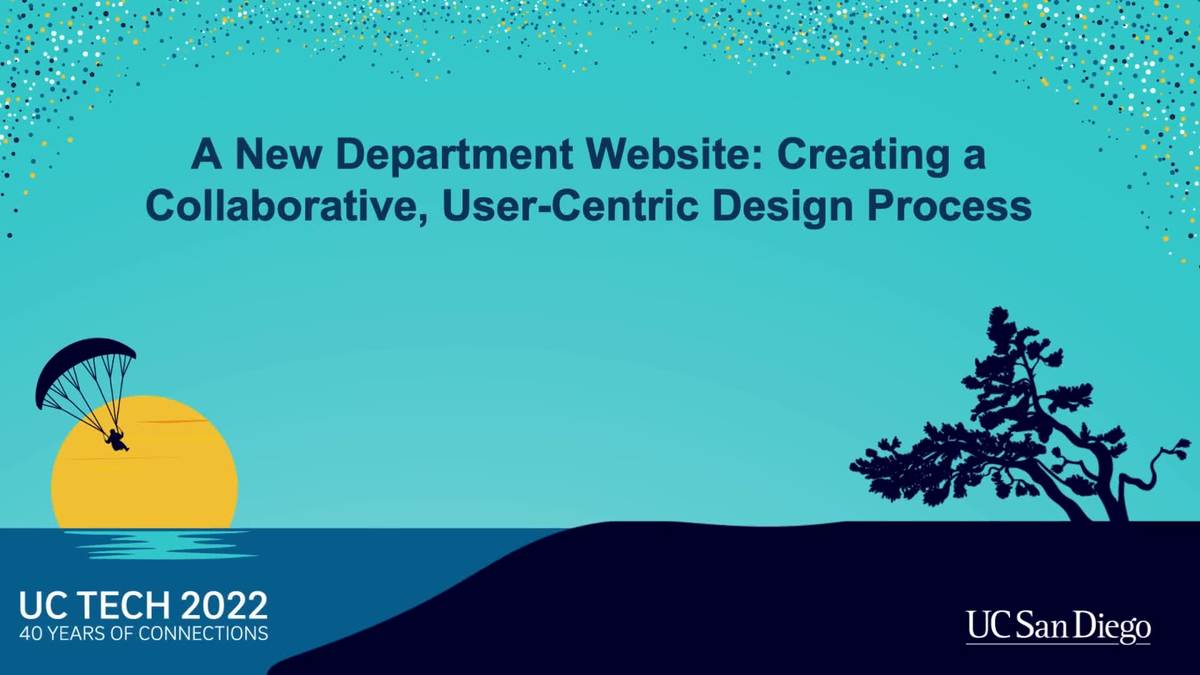
    A New Department Website: UC Tech Presentation

    On August 17, 2022, I led a presentation at UC Tech on the process we used when redesigning the OIT website. In this presentation, Meredith Ehrenberg and I shared how we used a collaborative, user-centric design process to rebuild OIT’s website to focus on the thing that matters most to our clients, our services.

    The approach we used was to not make assumptions, ask a lot of questions, and let our clients tell us what they actually come to the site for. We built the site for them, standardizing and simplifying it in the process.

    Watch the recording and let me know if you have any questions.


  • Troubleshooting When WordPress Updates Go Wrong

    Troubleshooting When WordPress Updates Go Wrong

    Recently, a colleague reached out to me for help. She had inherited a WordPress website where the content was up to date, but plugin and theme updates had been neglected. When she tried to update the plugins, it broke the website. She was able to get it restored and a test site set up, but she needed help figuring out how to make the updates safely.

    I agreed to take a look to see if I could help. Here are the things I tried, what I learned, and what ended up being successful.

    Test/Dev Website

    Thankfully they had a cloned version of their website. This allowed me to try out solutions before we attempted them on the production website. If you don’t have a test/dev version of your WordPress website, get one if you can. Do your updates there first to make sure you don’t break your production website. If this is not an option, see if your host has an easy way to restore from a backup. This will allow you to restore the site to a version when it was still working.

    Too Many Themes

    The first thing I noticed was that they had installed almost 60 themes. 51 of them needed updates. You can only use one theme, so it didn’t make sense to have all of the extras. I recommended deleting the 51 she didn’t use. We did keep a few of the WordPress default themes because these can be good to revert to if you are troubleshooting a problem with a theme. While it can be useful to try different themes when you are developing a website, you should delete the ones you don’t end up using. Why? Because if any of these themes have a security issue, they are installed on your website and can potentially be a vector to compromising your website. They are also taking up storage space.

    I then updated the theme they were actively using and the other WordPress Twenty* themes we were keeping. That all went well.

    Delete Inactive Plugins

    The next thing I noticed is that they had 17 inactive plugins. These were plugins that had been installed but were not being used anymore. Some of the updates were for these plugins. I recommended we delete the 17 plugins that were not actively being used. Again, these plugins are taking up storage space and are a security risk. You aren’t using them, so it is best to remove them. If you need them in the future, you can reinstall them.

    Update Plugins and Rollback If Needed

    Now that the unused themes and plugins were gone, I attempted to update the plugins one by one. They had the WP Rollback plugin installed. This plugin allows you to easily roll back plugins and themes to a previous version. I documented the versions they were using before making the updates. This allowed me to revert back to the version they had just been using if the update caused a problem. This is an important step, don’t leave it out.

    I recommend updating plugins one by one and then testing the site. This allows you to know which one caused a problem. If you do them all at once, it will be harder to tell which one caused the issue. Sometimes the logs can help, but you may not have access to them.

    I updated 23 plugins. Most of them went fine, but 4 crashed the front end of the website. I was able to use WP Rollback to roll back to the version they had been using which fixed the website, but they were still out of date.

    Turn Off Plugins During the Update

    I next decided to try to deactivate all of the plugins except WP Rollback and update the problematic plugins one by one again. That worked! I then reactivated the plugins and the site was working! Why did this work? I’m not 100% sure, but it was likely a plugin or code conflict. By turning off all of the plugins they were able to update without conflict during the update.

    Update WordPress Core

    WordPress was also out of date. I was not able to update WordPress core due to permission issues on the server. I contacted the system administrator who was able to help. He updated WordPress and the site was now up-to-date.

    Rinse and Repeat

    Now that we know what would work, we followed the same steps on the production website. We deleted the unused themes and plugins. We updated the plugins one by one. We turned off the plugins to update the problematic ones. We asked the system administrator to update WordPress.

    Lessons Learned

    WordPress is an amazing content management system. The extensibility through a robust repository of plugins and themes makes it very popular. However, it also takes care and maintenance. The more plugins you install, the more likely you are to have conflicts. Each piece of software is written by different programmers. They cannot account for everything else you have installed. Security issues happen, so it is critical to keep your software up to date.

    Recommendations

    • Get a test or development site to update and test your plugin and theme updates. On the test site, you may want to enable automatic updates. You will get an email every time a plugin or theme is auto-updated. Consider keeping a running list so you know what to revert back to if there is a problem.
    • Only install what you really need. The more plugins you have, the more likely you are to have conflicts.
    • Delete any themes and plugins you are not using.
    • Only get themes and plugins from reputable sources including WordPress.org
    • Update your plugins and themes regularly, at least weekly. If you have a test site, make sure they are working there first.
    • Use a security plugin. I really like WordFence. The free version works very well. The paid version is even more robust.
    • Keep an eye on your comments. This website had over 80,000 comments, most of them approved due to settings not requiring moderation. Use a spam plugin like Aksimet and require that all comments are moderated.

    Managed Hosting Alternative

    If this is all too much to worry about consider managed WordPress web hosting. OIT offers managed WordPress web hosting to UCI faculty, staff, and graduate students on our UCI Sites network. You are limited to the provided themes and plugins, but you have peace of mind that the software is up-to-date and secure. Every plugin and theme that is available has gone through code review and is supported by our hosting partner, CampusPress. If you need more control over what plugins and themes are available, you can also pay CampusPress to set up your own WordPress website or network.