Finding great visuals for your website can be a challenge. Do you take photos yourself, pay for stock photos, or try to find photos online? The first two options are good choices to make sure that you are not violating any copyright laws. The latter can be a challenge as you want to make sure you have permission to use the photo or image. However, there are several free stock photo sites that may have just what you need.
Unsplash has a large collection of over 30,000 high-resolution images from more than 50,000 contributors. All photos published on Unsplash can be used for free. You can use them for commercial and noncommercial purposes. You do not need to ask permission from or provide credit to the photographer or Unsplash, although it is appreciated when possible.
Pixaby has a large database of high-quality images. It’s more oriented towards business and marketing. They also offer free vector art and illustrations.
Stockvault
Stockvault is another great source for free stock photos, textures and illustrations. New media is added every day.
Pexels has a large collection of photos and videos. All photos are free to use. Attribution is not required, but appreciated. You can modify the photos to suit your needs.
Reshot
Reshot provides the world’s best emerging photographers with a beautiful platform for sharing a sampling of their best work for free use in creative projects. Creatives in need of visual content can freely explore and license some of the world’s best imagery.
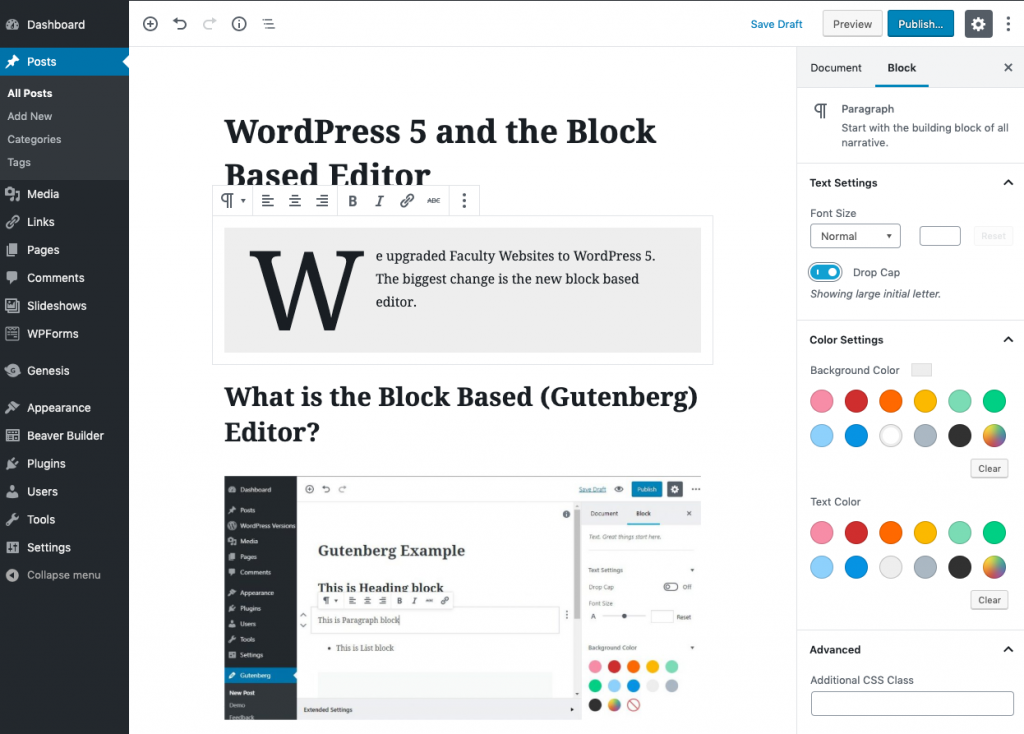
We upgraded UCI Sites to WordPress 5. The biggest change is the new block based editor.
What is the Gutenberg (Block Based) Editor
Screenshot of the new editor
The new block based editor can replace the classic WordPress editor, so it will be a very significant change in the way you edit the content area of posts and pages. With the new block based editor, you can add multiple types of media while editing a WordPress post or page, and then arrange the layout of the content directly within the editor using Gutenberg blocks.
We have chosen to let you opt-in to the new editor. You can decide when you want to try it and continue to use the classic editor until you are ready. However, please be aware that WordPress has only committed to supporting the classic editor until 2022.
How to turn on the Block Editor
Login to your site as an administrator
Go to Settings > Writing
Select Block Editor
Optionally you may also allow your users to switch editors.
Save Changes
The Block Editor will now be enabled. You can switch back to the Classic Editor if you prefer.
Gutenberg Guide
We have updated our UCI Sites Help Center with new articles on using the Gutenberg block editor.
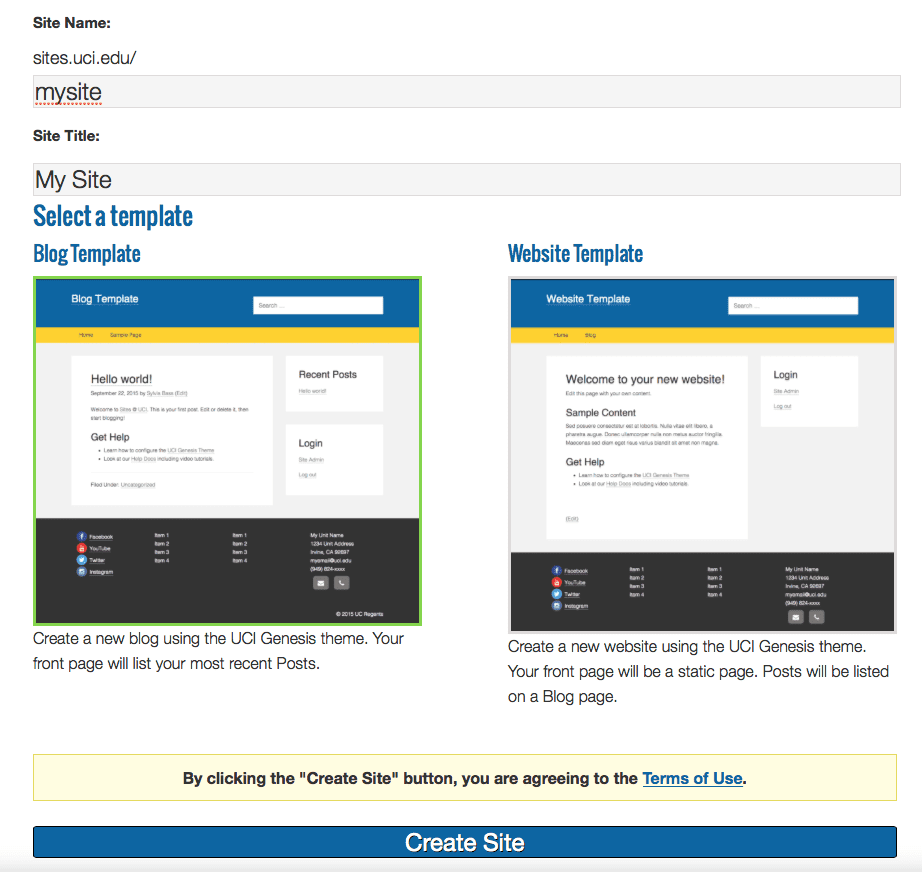
In an effort to make it easier to get started using Sites@UCI, we have created two different templates. When you sign up for a new site, you will now have the option to choose either a Blog Template or a Website Template.
Blog Template – Uses the UCI Genesis theme. The front page displays a list of your most recent Posts.
Website Template – Also uses the UCI Genesis theme. The front page is a static Page that you can edit. It also has a separate Blog page to display your Posts.